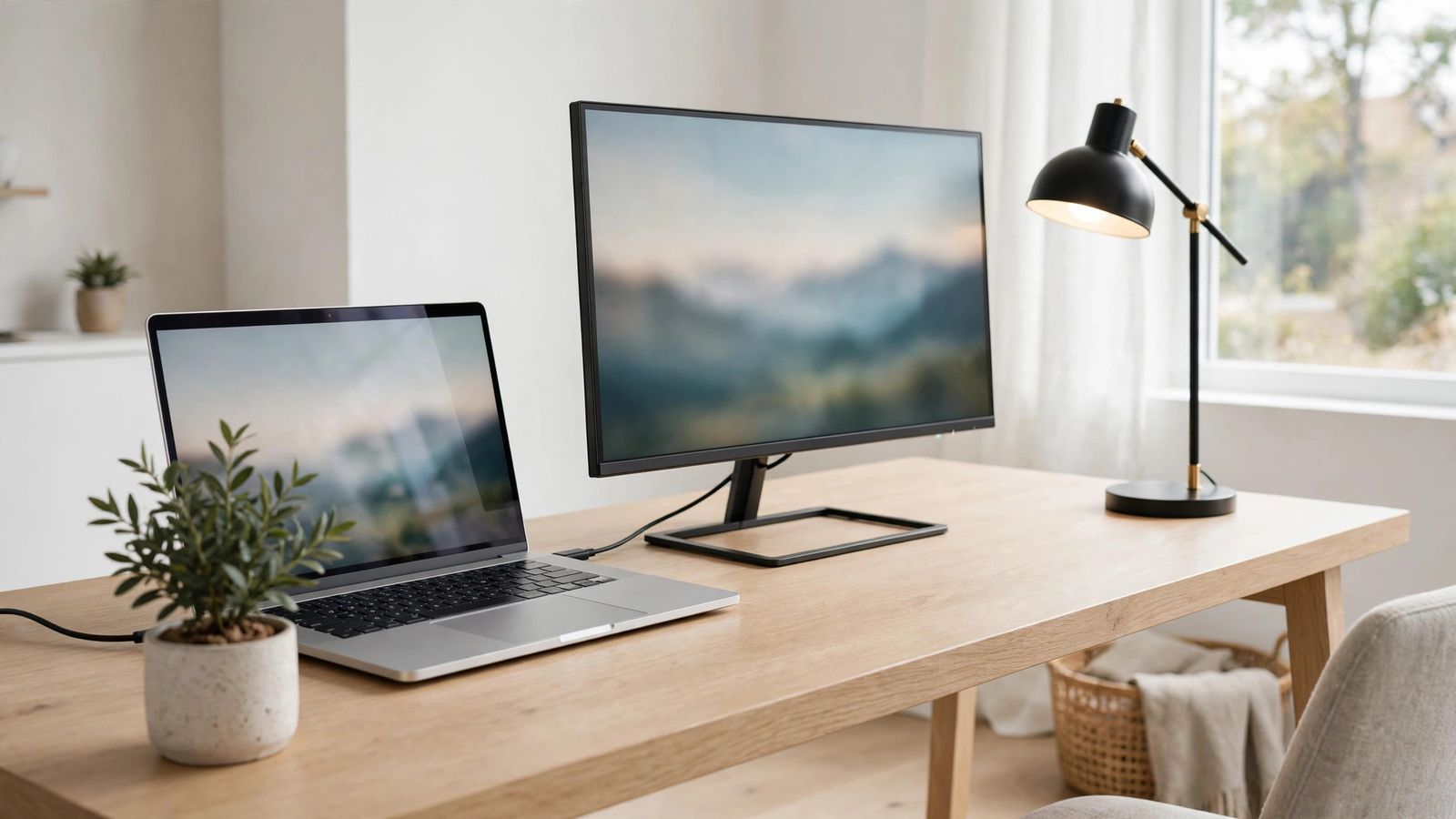
A 13-inch laptop screen forces you to juggle windows all day — reference on the left, work on the right, and a neck craned downward. An external monitor is the highest-impact desk upgrade most people can make, often for under $200. One big screen replaces the constant alt-tabbing that fragments your focus.
Size and Resolution: The Sweet Spots
27 inches at 1440p is the productivity sweet spot: text is crisp without scaling headaches, and you can comfortably run two full windows side by side. 24 inches at 1080p is the budget pick that still transforms a laptop workflow. 32-inch 4K is glorious but demands desk depth and a laptop that can drive it. For most desks and budgets, 27-inch 1440p is the answer.
The One-Cable Dream: USB-C
A USB-C monitor with 65W+ power delivery replaces your charger, dock, and video cable in a single plug — dock your laptop by connecting one cord. Check that your laptop's USB-C port supports DisplayPort output (most modern ones do). HDMI-only monitors work fine but add cable clutter. USB-C with power delivery is worth paying extra for — it's a dock and a screen in one.
Panel Types and Ergonomics
IPS panels offer the best colors and viewing angles for mixed work. VA panels give deeper blacks for media but narrower angles. Height adjustment matters more than specs: the top of the screen should sit at or just below eye level to save your neck. A monitor arm frees desk space and makes positioning effortless. Buy for the stand or the arm mount — ergonomics beat pixel specs.
Setting It Up Right
Match the monitor's scaling so text matches your laptop's size, and arrange the displays in your OS settings to mirror their physical positions. Close the laptop lid or elevate it beside the monitor as a secondary screen. Take a break every hour — a bigger screen doesn't excuse marathon sessions. Position the external monitor as your primary screen, with the laptop as the sidekick.