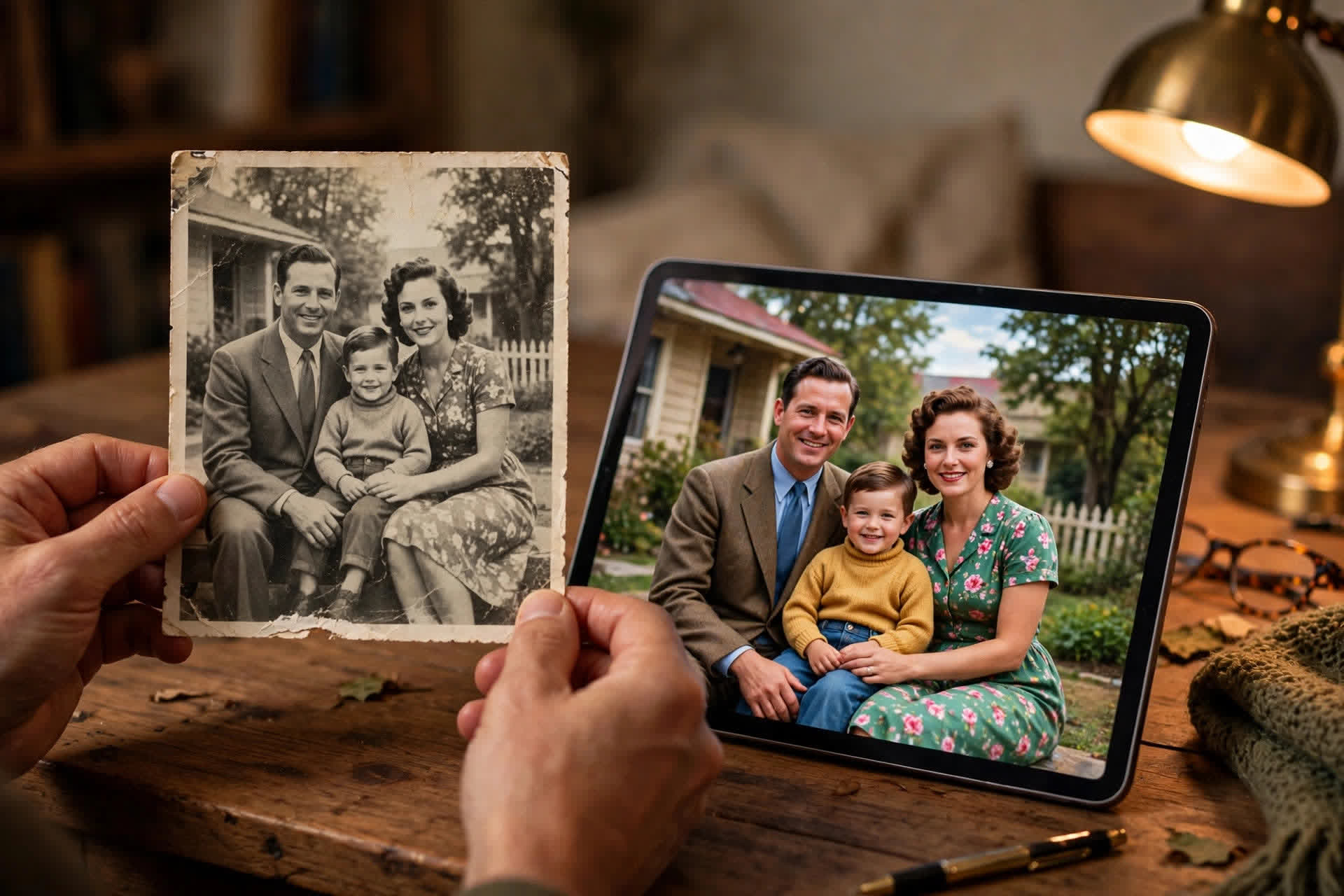
That faded black-and-white photo of your grandparents can look like it was taken yesterday. Modern AI tools colorize, sharpen, and repair scratches in old photos automatically — work that once took professional retouchers hours. Here's how to do it yourself, mostly for free, and keep the results looking natural.
Start with a Good Scan
AI can't fix a bad scan. Scan at 600 DPI minimum (1200 for small prints), and turn off your scanner's "auto-enhance" so you control the restoration yourself. Handle prints by the edges, wipe dust off the scanner glass, and save as TIFF or high-quality JPEG. Phone apps that scan prints work in a pinch — use even lighting and avoid flash glare. A clean scan is half the restoration.
Free AI Tools That Work
Several free tools handle the heavy lifting. Web-based colorizers (search "AI photo colorizer free") add realistic color to black-and-white shots in seconds. Face-restoration models like GFPGAN sharpen blurry, tiny faces remarkably well — try them through free online demos. General enhancers remove noise, boost resolution, and fix fading automatically. Always work on a copy of the original scan, and try two or three tools on the same photo — results vary wildly, and comparing is fast.
Keeping Faces Looking Real
The biggest giveaway of AI restoration is over-smoothed "plastic" faces. Run face enhancement at moderate strength, and don't stack enhancers — one good pass beats three aggressive ones. Colorization is AI's best guess, so check skin tones and clothing colors carefully; grass and skies are usually right, but clothing colors are often wrong. If you know the actual colors (grandma's blue dress), adjust them manually in any free photo editor after the AI pass.
Fixing Damage: Scratches, Tears, Spots
For small scratches and dust spots, free editors' healing/spot-removal brushes erase them in clicks. AI inpainting (available in many free web tools) reconstructs torn or missing areas by guessing from surrounding pixels — excellent for cracks and fold lines. For severe damage, work in stages: clean the scan first, then enhance, then colorize last. Patience beats any single magic button.
Honesty and Expectations
Set expectations: AI restores detail it can guess — it can't recover information that isn't there. A tiny, blurry face will never become a crisp portrait; the tool invents plausible detail. That's fine for sharing with family, but label heavily restored photos honestly if they matter historically. Also note that free tools may compress your uploads — for a treasured print, download the highest resolution offered, and keep the original scan untouched forever.